
Windows Voice Typing: An Alternative When Win+H Isn't Enough

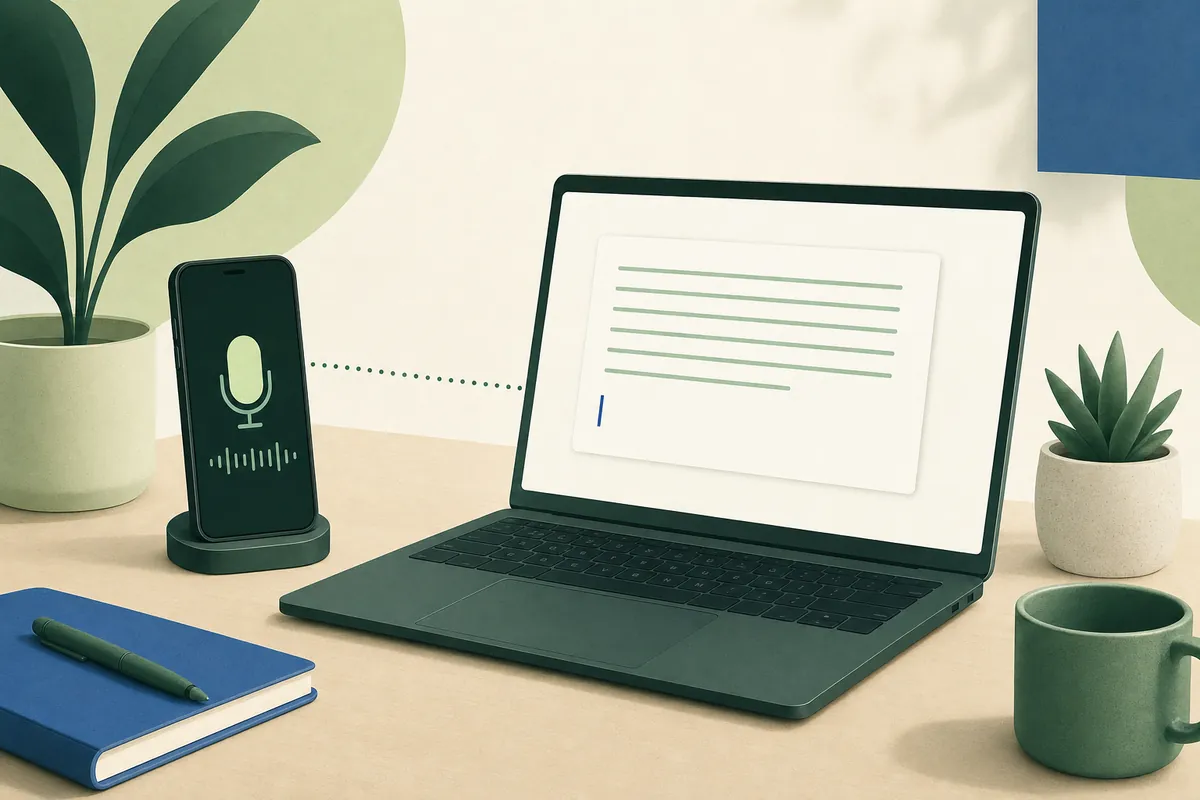
Windows has voice typing built in: press Windows key + H in any text box. If your PC has no microphone, you'd rather not depend on online recognition, or you want your words cleaned up as you go, YOURIO Receiver for Windows lets you dictate through your phone instead: hold Right Alt, speak into the phone, and the text appears at your cursor. Speech is recognized on the phone, and only the final text reaches the PC, end-to-end encrypted.
When Win+H is the first thing you try
You're at a Windows desk all day: Outlook, Teams, Word, a ticketing system in the browser. Your hands are tired of typing, or you simply talk faster than you type, so you search for "Windows voice typing" and find the shortcut. That's the right first step, and it's worth knowing exactly what it needs.
According to Microsoft's support page (checked October 2026), voice typing in Windows 11 and Windows 10:
- starts with Windows key + H when your cursor is in a text box;
- needs an internet connection and a working microphone;
- uses online speech recognition, which Microsoft says is powered by Azure Speech services;
- on Windows 11, offers automatic punctuation and a voice typing launcher in its settings, and supports a long list of languages, including Chinese (Traditional, Taiwan), Japanese, Korean, Spanish and German;
- on Windows 10, lists a shorter set of dictation languages.
It's free and already on your PC. For many people that's enough, and if it works for you, keep using it.
Where it can fall short
No microphone, or a bad one. Many desktop PCs have no microphone at all, and a webcam mic across the desk picks up the whole room. Win+H needs a working mic on the PC.
Online recognition. Because voice typing uses online speech recognition, it needs a connection. Some people also prefer, or are required, to keep their speech off cloud services entirely.
From transcript to a message you can send. When you talk naturally you say "um", you correct yourself mid-sentence, and you list things in whatever order they come to mind. If you want those cleaned up without fixing them by hand, you need a tool built for that.
Dictating on Windows through your phone
YOURIO Receiver is a small system tray app. It doesn't use the PC's microphone. When you hold the talk key, it asks the YOURIO app on your phone to listen. The phone recognizes your speech with its own on-device recognizer; the audio is never saved and never sent to YOURIO. When you let go, the phone applies Magic or translation if you've turned them on and sends just the text to the PC, which types it at the cursor and keeps no copy.
An example in a Teams chat with Magic on. You hold Right Alt and say:
"uh can we move the review to Thursday, actually no, Friday morning, and I'll send the agenda before"
What appears:
Can we move the review to Friday morning? I'll send the agenda before.
Magic · Standard removed the filler, kept only your final answer and punctuated it, on the phone and free. Magic · Enhanced (cloud AI) goes further: it reorders scattered thoughts and turns a spoken list into bullet points while keeping your tone. With translation on, you can speak English and have Spanish typed into the PC.
Some Windows details that make this pleasant in practice:
- The talk key is Right Alt by default. If one of your keyboard layouts uses AltGr (UK, German, French, Spanish…) it is Right Ctrl, with a Korean layout Right Shift, and you can pick another key in the Receiver's key setup.
- The talk key is captured by the Receiver, so holding it doesn't open the menu bar of the app you're in.
- Text with several lines is pasted rather than typed key by key, so a line break doesn't send your Teams or Slack message early. Your clipboard is put back afterwards.
- A brief tap doesn't start listening; you hold the key for a moment. Pressing another key while listening cancels it.
- If your keyboard layout uses AltGr to type characters, the talk key defaults to Right Ctrl so AltGr keeps working.
Set up YOURIO Receiver on Windows
- Phone first. Install YOURIO on your iPhone or Android phone and download your language in the Speak tab.
- Get the Receiver from the Microsoft Store (links are at the end of this article). It needs Windows 10 (1809) or later, and the Store installs the right version (x64 or ARM64) for your PC.
- Pair. The Receiver shows a QR code. On your phone, open YOURIO › Voice › Output Device › Computer › Scan the QR on your computer. Then click into any text box, hold Right Alt, speak and let go.
Honest limits
- Your phone has to be nearby. The PC's microphone isn't used. If you want to talk to the PC with no phone around, Win+H is the better tool.
- Long text is easier in parts. It listens for as long as you hold the talk key, but a long passage dictated in paragraphs is easier to check after Magic cleans it up.
- Edit and Ask Memory aren't available on the computer. They work on the phone.
- Windows running as administrator, such as an elevated PowerShell, may not accept text typed by another app. Use a normal window.
- Recognition languages depend on your phone's on-device recognizer, not on Windows.
The Receiver, voice typing, translation and Magic · Standard are free with no word limit. Magic · Enhanced uses cloud AI: 2,000 free words a week with YOURIO AI, YOURIO Pro at US$2.99 a month, or your own API key.
The full picture, including Mac, is in Use your phone as a microphone for Mac and Windows. If you're switching to voice because of your wrists, see a voice typing workflow for the workday; for code-adjacent writing, voice typing for developers. And if you need dictation that works with no connection at all, read offline voice typing.
Frequently asked questions
How do I turn on voice typing in Windows?
Put your cursor in a text box and press Windows key + H. Microsoft's support page says voice typing needs an internet connection and a working microphone, and uses online speech recognition powered by Azure Speech services.
Can I use voice typing on a Windows PC without a microphone?
Yes, with your phone. Install YOURIO Receiver on Windows 10 (1809) or later, pair it with the YOURIO app by QR code, hold Right Alt and speak into the phone. The phone recognizes your speech and sends only the text to the PC, end-to-end encrypted.
Why can't my phone find my Windows PC?
Keep both on the same Wi-Fi and allow YOURIO Receiver on private networks when Windows Firewall asks. If your Wi-Fi blocks devices from seeing each other, which is common at offices and schools, YOURIO connects through its encrypted relay automatically.
Does YOURIO Receiver for Windows cost anything?
No. The Receiver is free, and voice typing, translation and Magic · Standard have no word limit. Only Magic · Enhanced uses cloud AI: 2,000 free words a week with YOURIO AI, US$2.99 a month for YOURIO Pro, or your own API key.
Sources: Microsoft Support, Use voice typing to talk instead of type on your PC (checked October 2026).
Keep reading
Use Your Phone as a Microphone for Mac and Windows Dictation
No microphone on your computer? YOURIO Receiver turns your phone into one: hold a key, speak into the phone, and clean text appears at your Mac or PC cursor.
Dictation Typed Your Correction Too? Keep Only the Final Version
Say "at 3, no, 4" and plain dictation types both. YOURIO's Magic keeps only what you meant, with rules that run on your phone, offline and free.